Use a Drive Data as input of a run
When a DeltaTwin® component requires an URL as input, there are different options available. One option is to set a data from either the personal or public DeltaTwin® storage.
From the UI
Select a DeltaTwin® component that requires a URL-type input
Click Run to open the Run Configuration page
On the Run Configuration page, a URL-type input shows a dropdown with 3 source options :
- DeltaTwin Drive Data
- Other URL (without authentication)
- SesamEO product
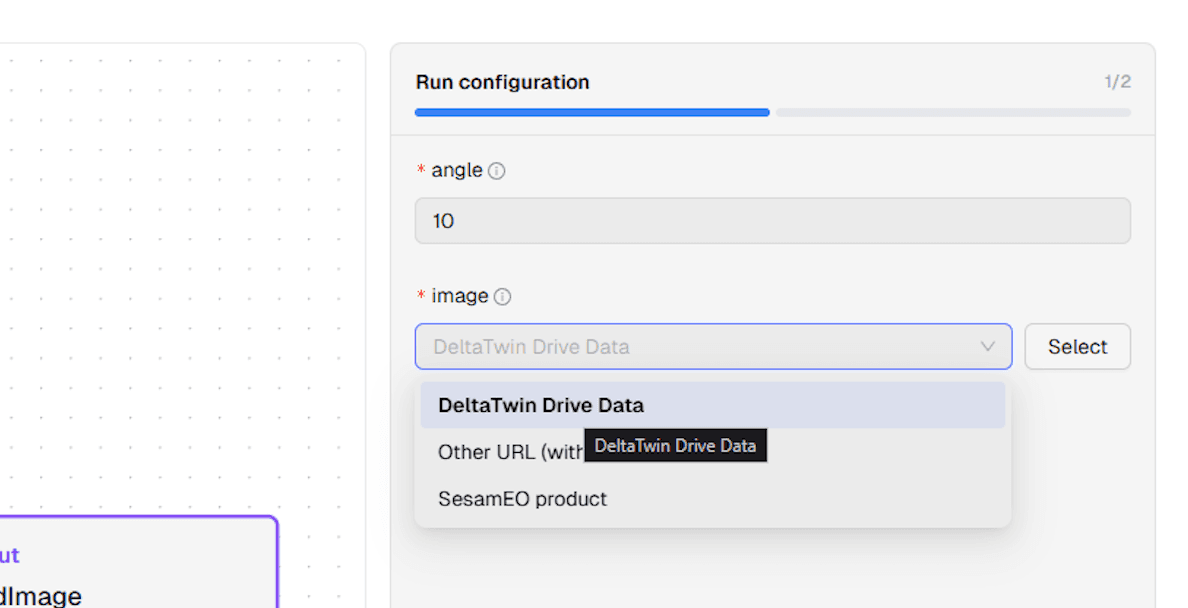
Select DeltaTwin Drive Data, then click Select
The Select a DeltaTwin drive data modal opens. It lets you pick an artifact or resource from private or public storage. Use the search bar and filters (Resource/Artifact, Public/Private, Date) to narrow the list down to the desired item.
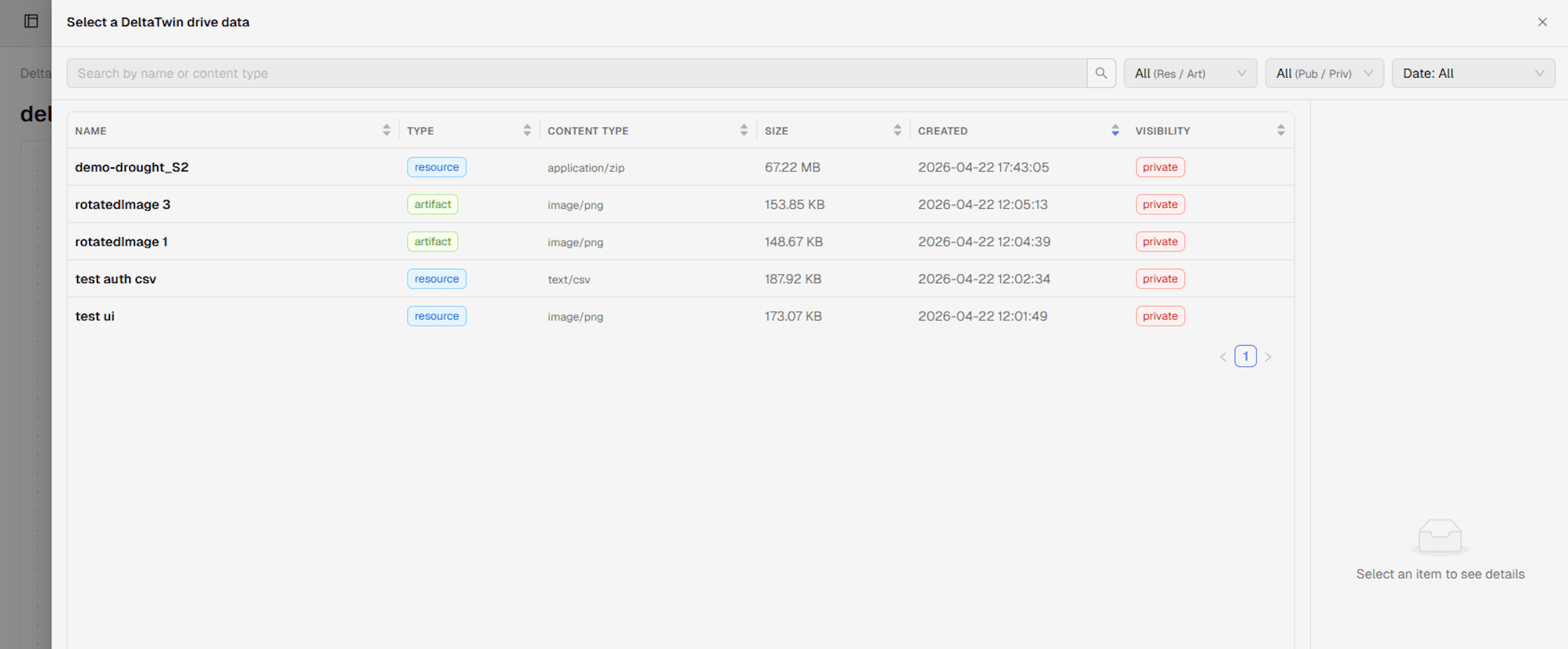
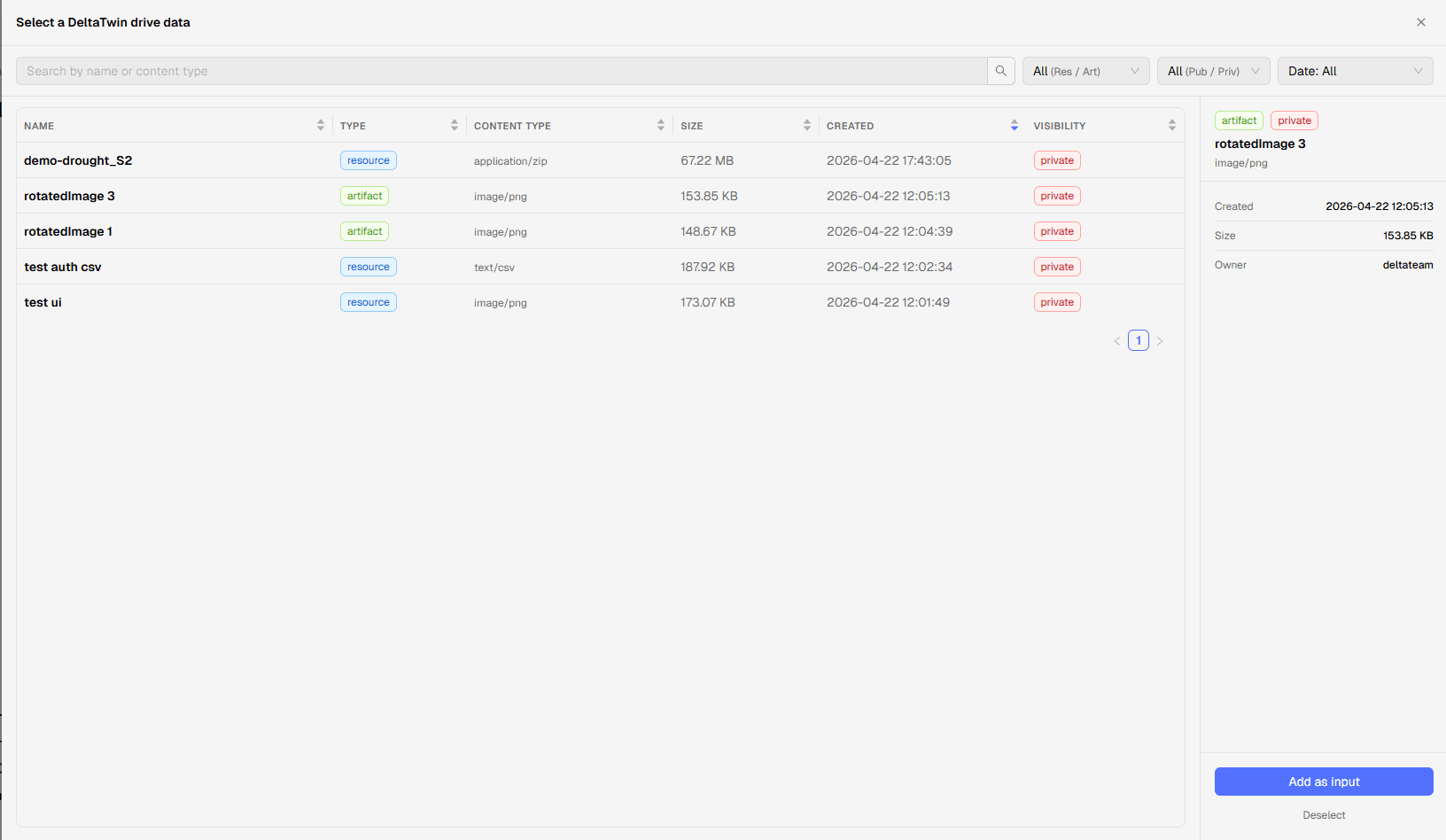
Click a row, then press Add as input
Clicking a row opens its details on the right (type, visibility, size, owner, creation date). Press Add as input to attach it to the run input. Use Deselect to clear the current pick.
Using the CLI
To run a DeltaTwin® with an input of type DeltaTwin® Drive Data :
Create a JSON file containing your desired input values
In the example below, the input “product” refers to a data file. To reference a Drive Data file, set the field ‘type’ to DriveData and fill in the ‘value’ field with the ID of the resource.
For example, the JSON input file for the band-extractor component will be :
{
  "product": {
      "type": "DriveData",
      "drive_id": "the-id-of-the-resource"
    },
  "bandName": {
      "type": "string",
      "value": "B01"
  }
}
Save JSON file as inputs.json
Run deltatwin run start band-extractor -i inputs.json
- use the command
deltatwin drive resource list -f json; - or from the UI, navigate to the desired Drive Data and see its details page to get its ID.